ShoppingList
Shopping list for iPhone, iPad & Apple Watch
Upgrade info
For users of ShoppingList Classic, the new ShoppingList offers a number of benefits:
- iCloud sync and lists shared with friends
- Even simpler user interface
- Support for iPad and Mac with Apple Silicon processor in addition to iPhone and Watch
- Widgets for the Home Screen and Watch as well as Siri and Shortcuts
- Text recognition via camera and import of data from the clipboard
How to import data from ShoppingList Classic
ShoppingList imports the complete database of ShoppingList Classic as well as single lists sent e.g. by email or message.
Import the whole database
Important: First update ShoppingList Classic to the latest version. Only then does ShoppingList offer the import when you first open it.
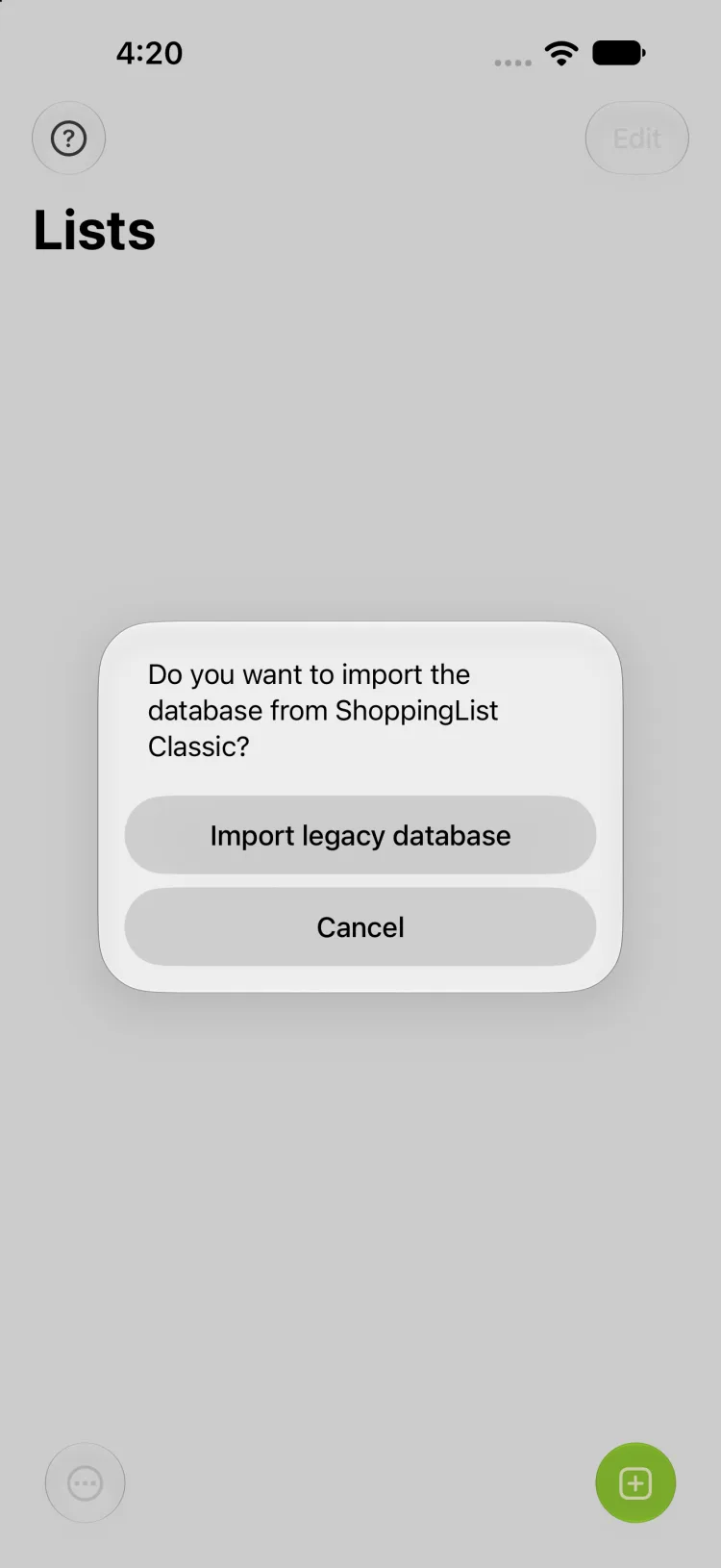
Install ShoppingList and open it. On first launch – or whenever it has no lists – it asks whether to import the database from ShoppingList Classic. Tap “Import legacy database”:
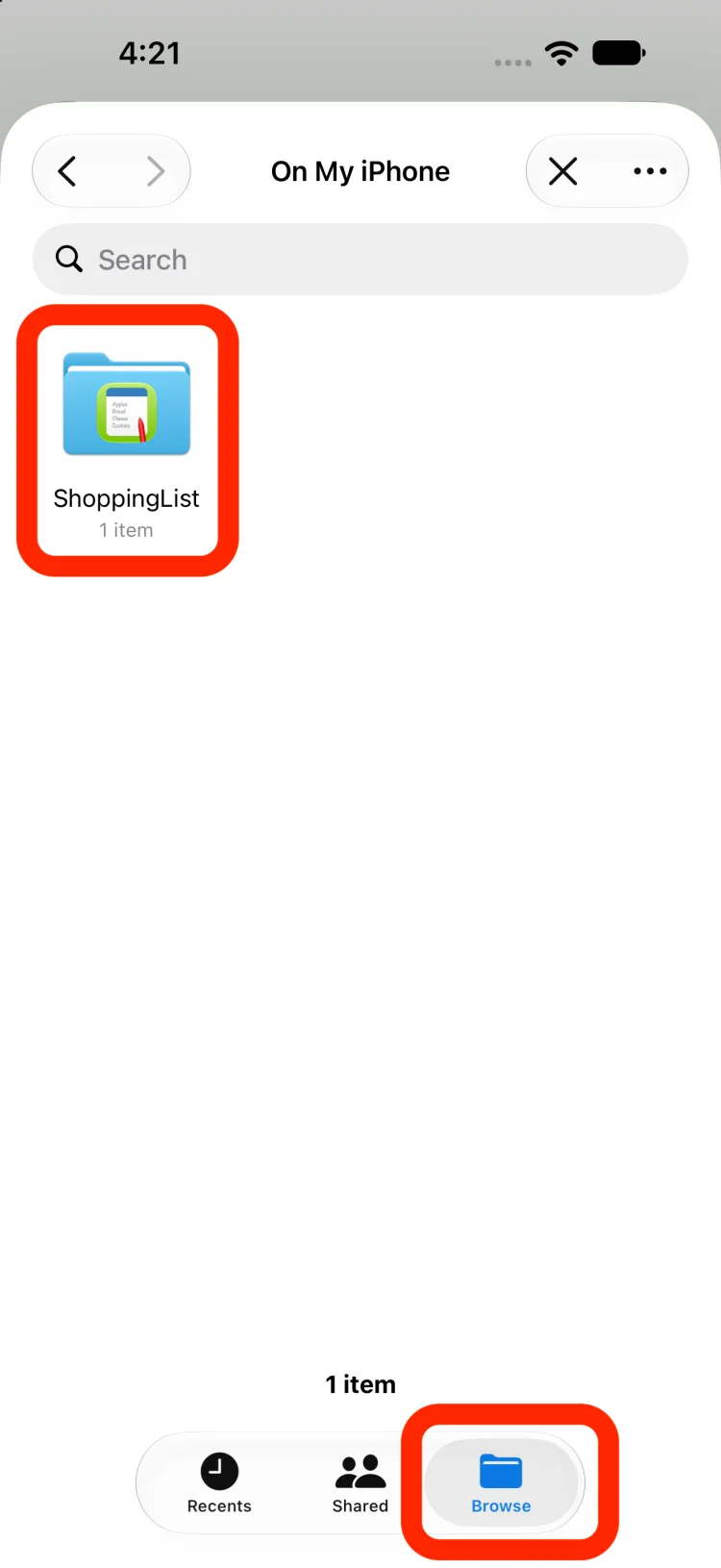
The Files app opens. Choose “Browse” at the bottom and, under “On My iPhone” or “On My iPad”, open the folder “ShoppingList” – this is the folder of ShoppingList Classic:
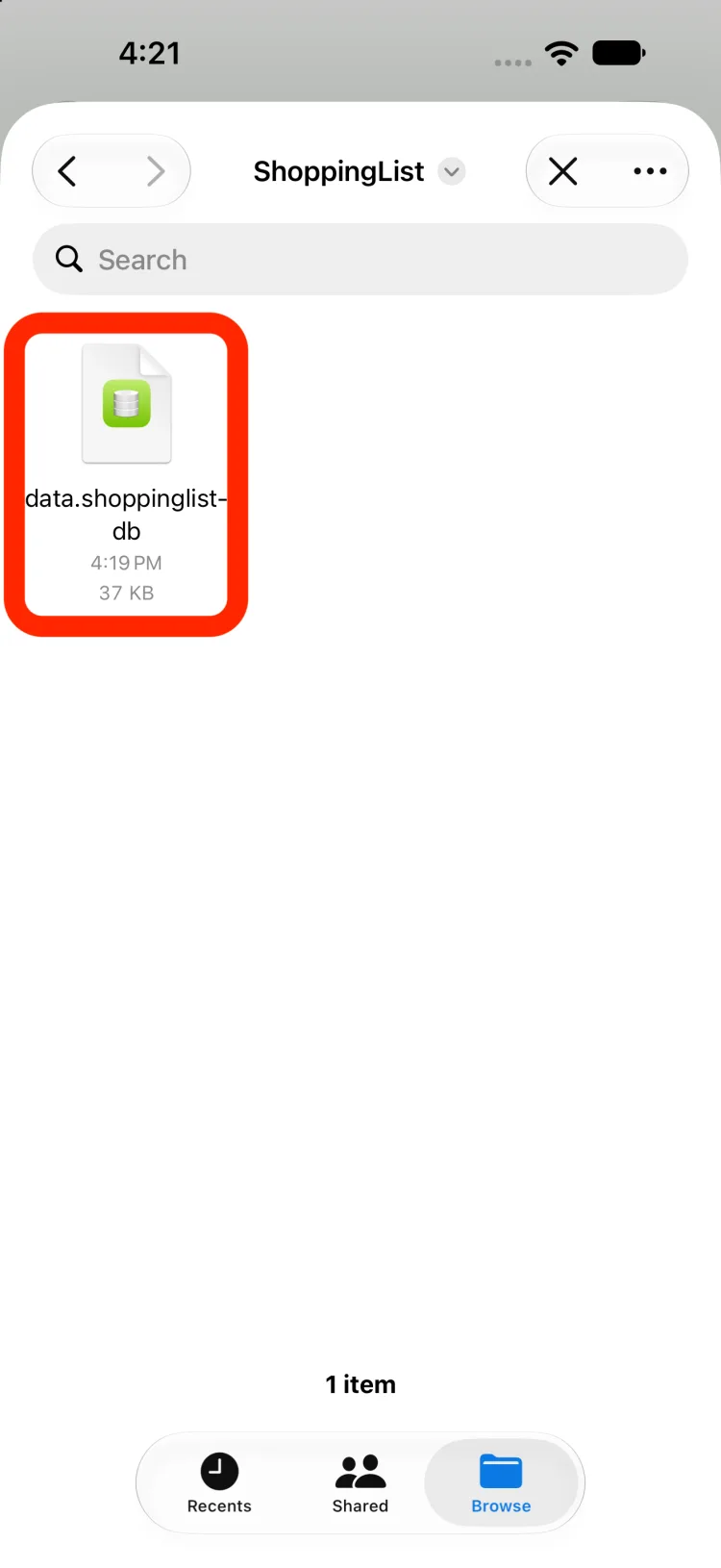
Tap the file “data.shoppinglist-db”. All lists of the old database are imported:
No data is overwritten. Imported lists are added to existing lists. ShoppingList Classic and its data remain unchanged.
Alternative import of the old database
You can also hand over the database from ShoppingList Classic at any time: in the list index, tap the export button at the bottom right and choose ShoppingList
in the share sheet. After confirming, all lists are imported.
Importing exported lists
Lists exported from ShoppingList Classic (e.g. via email) can be opened directly in ShoppingList.
Your iPhone will either open them directly in ShoppingList or it will ask you which app to use when receiving or opening them.